VM Recovery
VergeOS Hands-On Lab
Introduction to VM Recovery
Welcome to the VM Recovery Workshop in the VergeOS hands-on lab series. This course builds on the getting started course. We will use VergeOS' snapshot technology to recover the Linux virtual machine we created in the previous course.
Preparing for Recovery
Although snapshot schedules have been created for each virtual machine based on timing, those schedules may not have executed yet. The first step, therefore, is to create a manual snapshot. Manual snapshots are commonly used to capture the current state of a virtual machine or a virtual data center prior to performing an action on those objects. A typical use case is creating a manual snapshot before applying a software upgrade or patch. In this scenario, a manual snapshot is required to back up the virtual machines before they are deleted.
To start, click the dashboard item in the main menu to open the main dashboard display.
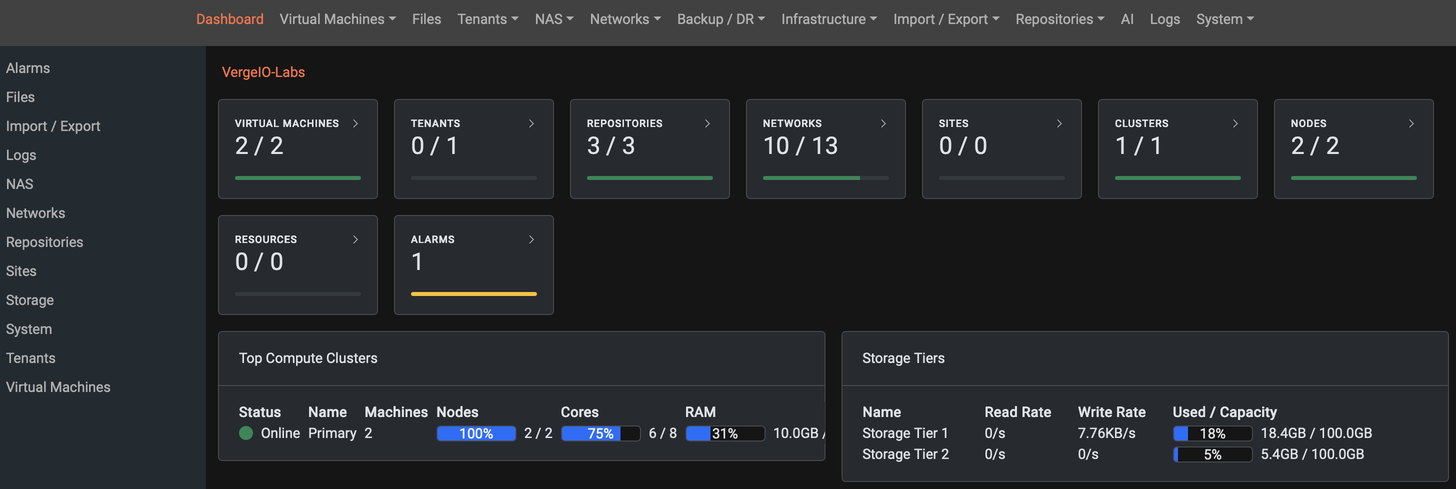
Next, navigate to the virtual machine dashboard by selecting Dashboard from the Virtual Machines menu in the top menu bar, or by clicking the Virtual Machines card in the main dashboard window pane.

On the virtual machine Dashboard screen, two active virtual machines are displayed. These are the virtual machines created in the previous lab. A list of snapshots generated by the schedules configured earlier may also be visible. From the Dashboard screen, select Virtual Machines from the left-hand context menu or click the Virtual Machines card.

Creating a Manual Snapshot
Selecting Virtual Machines displays the two virtual machines created in Course 1. To simulate a catastrophic corruption of the Linux virtual machine, select My Linux VM from the Virtual Machines overview and click View from the left-hand context menu. Alternatively, double-click the row containing My Linux VM to open the virtual machine detail screen.
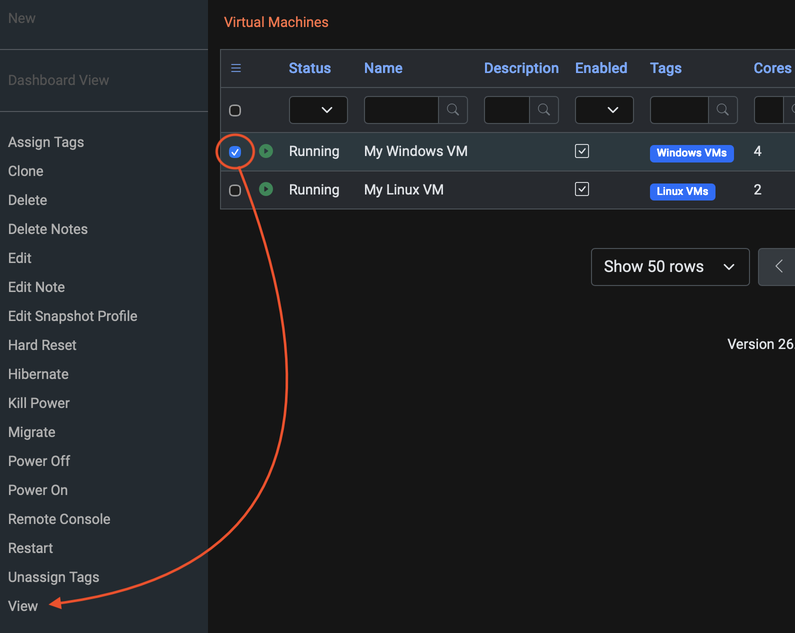
Depending on the amount of time that has elapsed since completing Course 1, multiple snapshots of this virtual machine may exist. As a precaution, a manual snapshot is created before initiating the destructive action. From this screen, select Snapshots in the left-hand context menu to reveal additional options, then select Take Snapshot.

In the New Machine Snapshot window, set the Name field to My Linux VM Snapshot 1. In the Description field, enter This is my first manual snapshot of My Linux VM. Click the Expires field and select tomorrow’s date for the expiration. Click Submit to complete the snapshot creation.

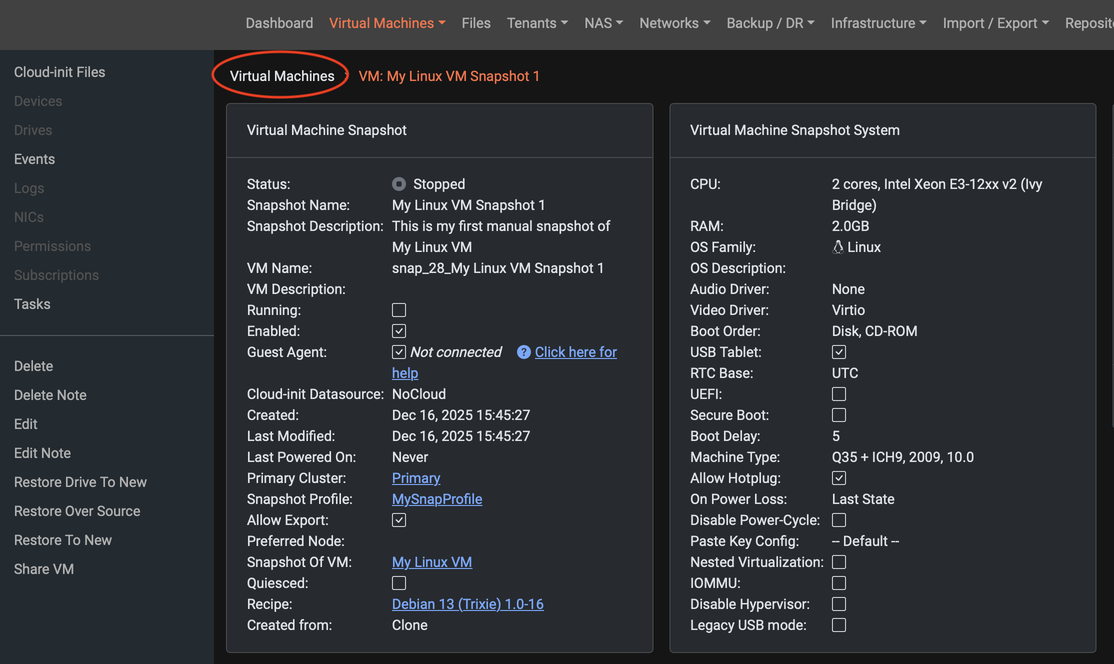
After clicking Submit, the snapshot is created and the Snapshot Detail screen is displayed, providing information about the snapshot.
The next step is to corrupt the Linux virtual machine. To proceed, click the Virtual Machines breadcrumb located at the top of the main console.
Simulating a Hard Failure
To simulate a hard failure, the storage device associated with the Linux virtual machine is removed. To do that we need first to power off the VM. From the Virtual Machines overview screen, select the Linux VM and then select Power Off. Select Yes to confirm the power off and in a few seconds the Linux VM will be powered off
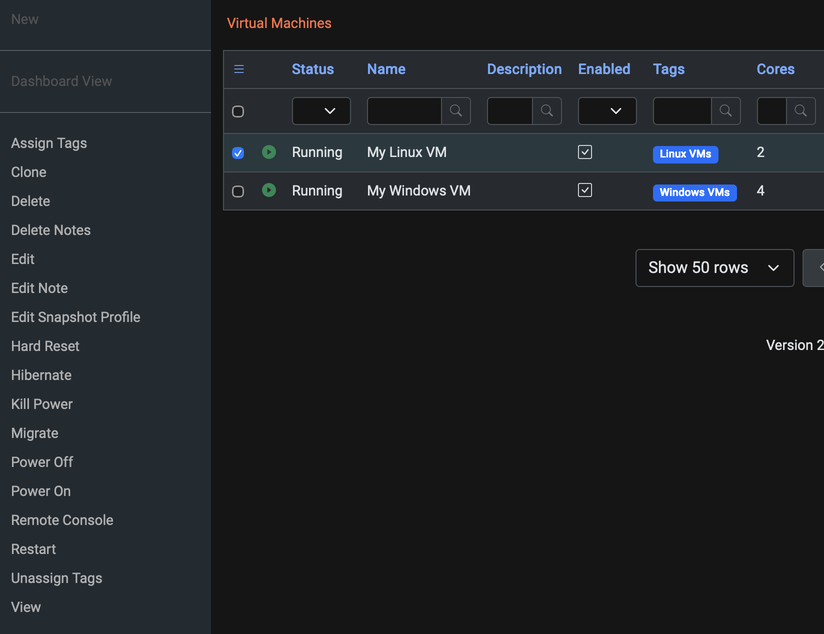
Next, select the Linux VM again and select View to display the Linux virtual machine detail screen.
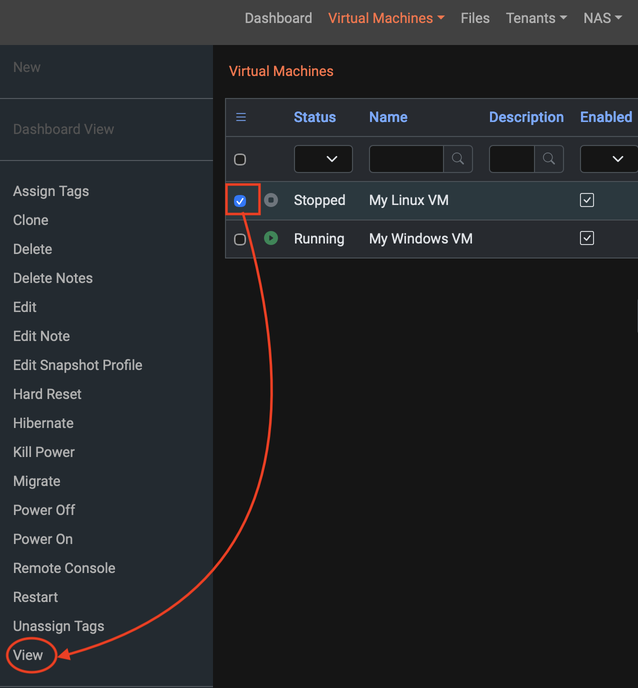
From the Linux virtual machine detail screen, click the Drives card in the main view or select Drives from the left-hand context menu.

In the virtual machine drive detail screen, select the drive and click Delete.

Once the drive is deleted, the Drives detail screen shows no drives available for the virtual machine. To confirm this catastrophic failure, power on the virtual machine and observe the result. Return to the virtual machine detail screen by clicking the virtual machine breadcrumb in the upper-right corner of the main screen.

Select the Play icon in the upper-right corner of the screen to start the virtual machine, or select Power On from the left-hand context menu. Wait approximately 30 seconds for the virtual machine to complete its boot attempt.
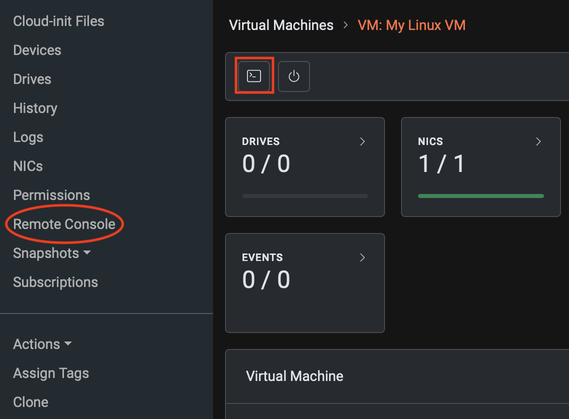
Select the tab directly to the right to display the Linux virtual machine console. The console shows that no boot drive is present, and the virtual machine is unable to complete the boot process.

Restoring the VM
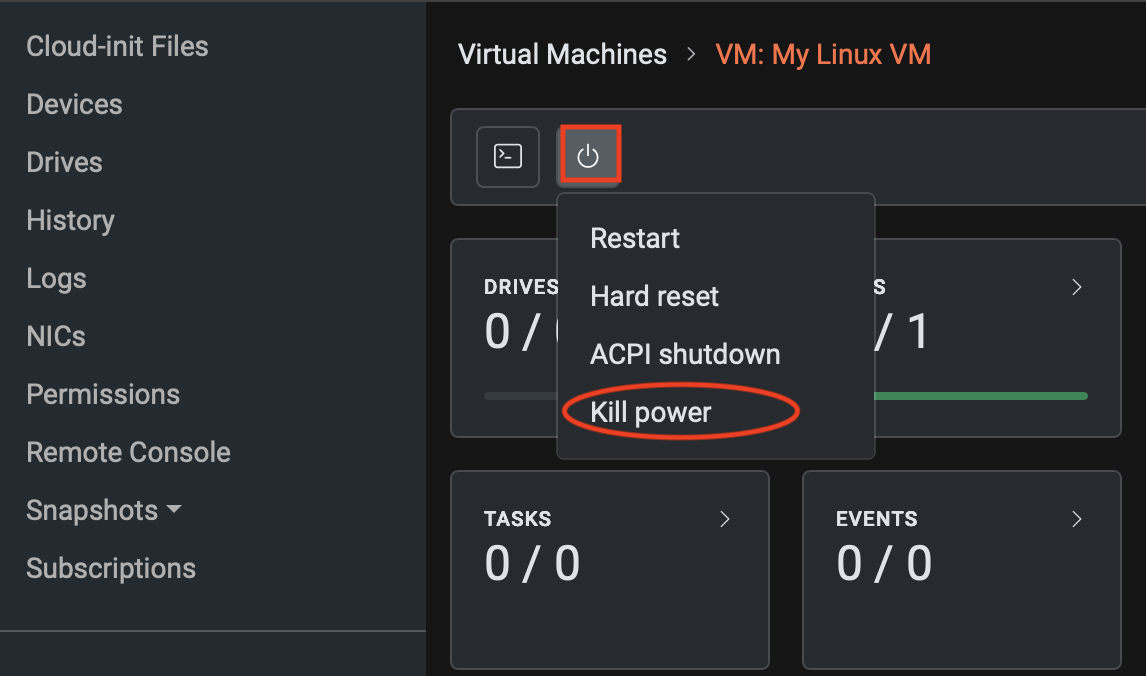
Before restoring the virtual machine from the snapshot, the virtual machine must be powered off. Select the VM Detail tab. From this view, locate the power icon in the upper-left corner of the main screen and click it to display the power options. Select Kill Power to attempt a graceful power-off operation.
 Note: A Kill Power is required because the ACPI shutdown does not complete successfully since the virtual machine has been deliberately damaged and cannot accept a proper shutdown command.
To restore the manual snapshot over the damaged virtual machine, click the Snapshots card on the main screen, or select Snapshots from the left-hand context menu to expose the snapshot options, then select Snapshots to display the snapshot details.
⚠️ Make sure to select snapshots, not system snapshots.
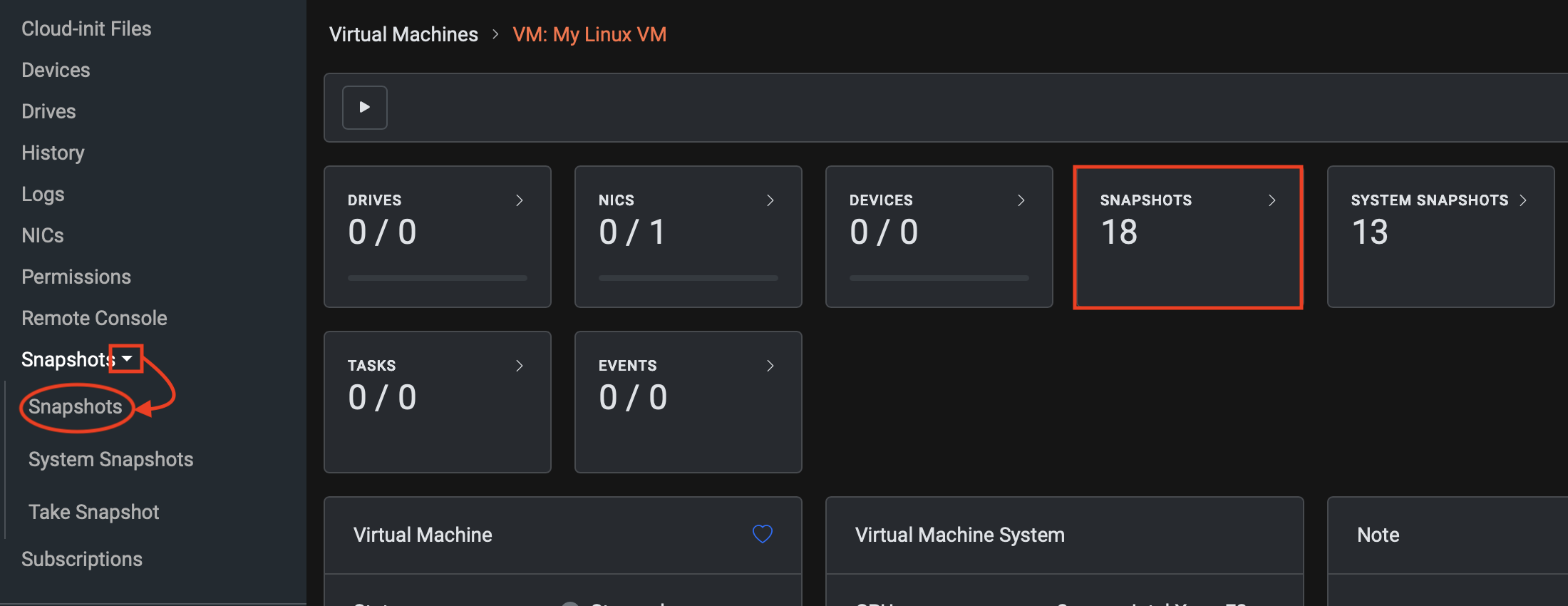
The next screen displays all available snapshots for this virtual machine. The list may differ from the example screenshot shown. Within the snapshot list, locate the manual snapshot labeled My Linux VM Snapshot 1 with the description This is my first manual snapshot. Check the box next to the snapshot, then, from the left-hand context menu, click Restore Over Source.

After selecting Restore Over Source, a warning dialog appears requesting confirmation to restore over the source virtual machine. Because the virtual machine is fully corrupted, restoring over it presents no risk. Click Proceed to continue. A notification indicates that the restore process has started. Click OK and wait approximately 10 seconds for the restore operation to complete.

After the virtual machine is restored, the final step is to power it on and confirm that it boots successfully. Select the Power On button in the upper-left corner of the main screen or select Power On from the left-hand context menu. Confirm that you want to start the VM and then wait approximately 20 seconds for the virtual machine to complete the boot process, or scroll down and check the logs, which will indicate when the recovery is complete.
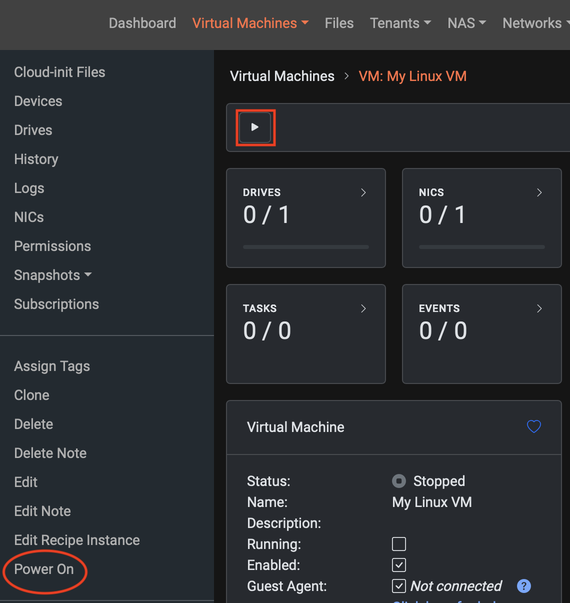
Open a Remote Console session with the Linux virtual machine by clicking the Remote Console icon next to the Power On button or by selecting Remote Console from the left-hand context menu. A new browser tab opens adjacent to the current tab. Switch to this tab and log in using the following credentials:
User Name: admin
Password: password

Course 2 of the VergeIO hands-on labs is now complete. In the next lab, a file is created within Windows and VergeOS’s capability to mount a snapshot as a drive within a virtual machine is used to perform a single-file recovery.