Live VM Migration
Hands-On Lab
In this lab, a live migration of a virtual machine from one node to another is initiated. To prove that operations are not interrupted during the migration, data is continuously written using the Linux dd command. The dd command performs low-level data copying by reading blocks of data from an input source and writing them directly to an output destination, making it well-suited for generating sustained disk I/O and validating data consistency during infrastructure operations.
The Getting Started with VergeOS lab is a prerequisite for this lab and must be completed before proceeding.
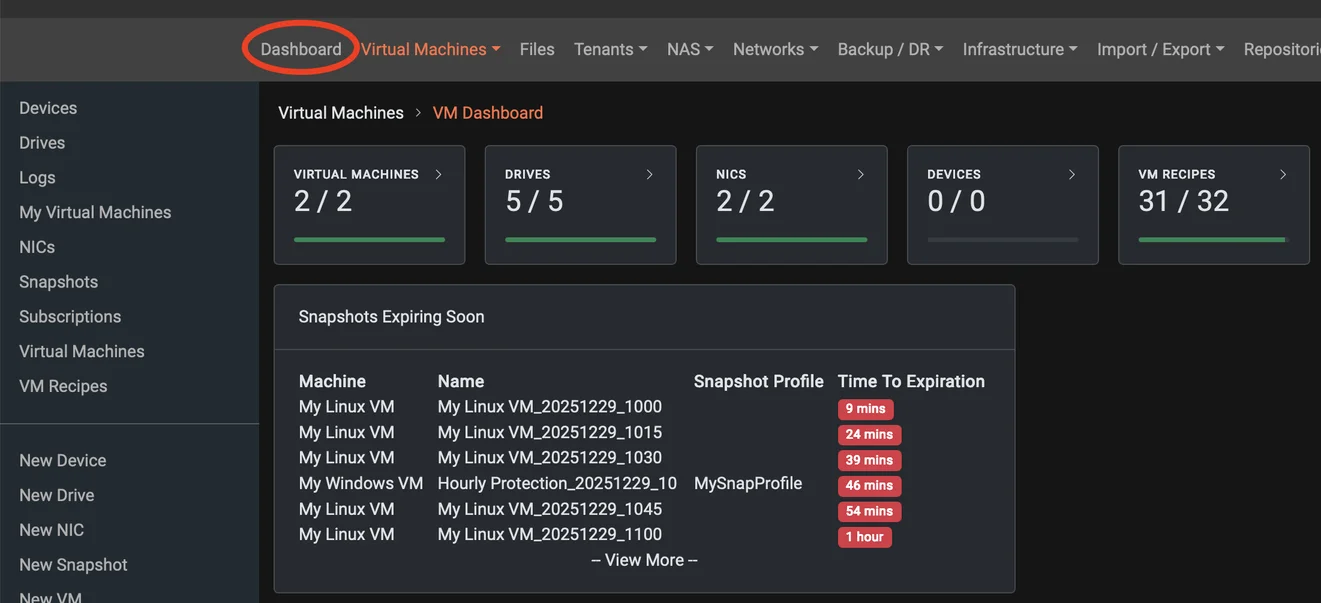
To start, click the dashboard item in the main menu to open the main dashboard display.
Preparing VM for Migration
Next, select the Virtual Machines card in the main display, select Virtual Machines from the left-hand context menu, or select the Virtual Machines card in the center of the display.
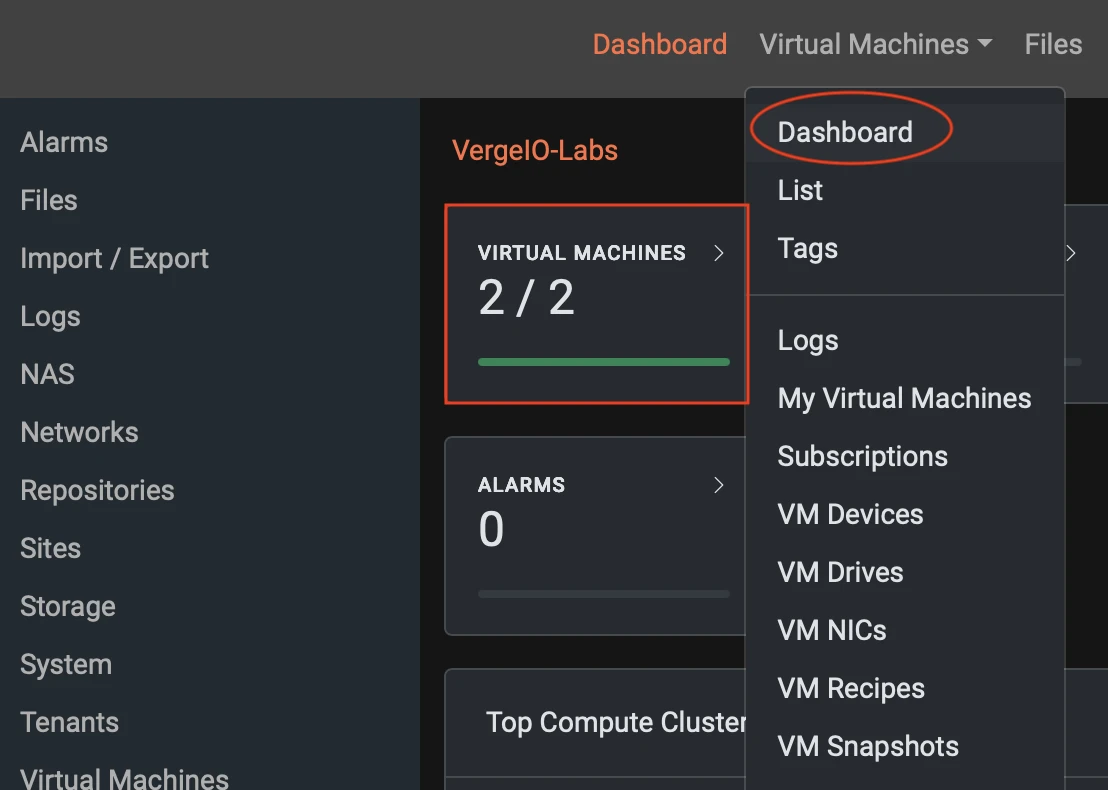
Next, access the virtual machine detail view to display the individual virtual machines. Select the Virtual Machines card in the center of the display or select Virtual Machines from the left-hand context menu.


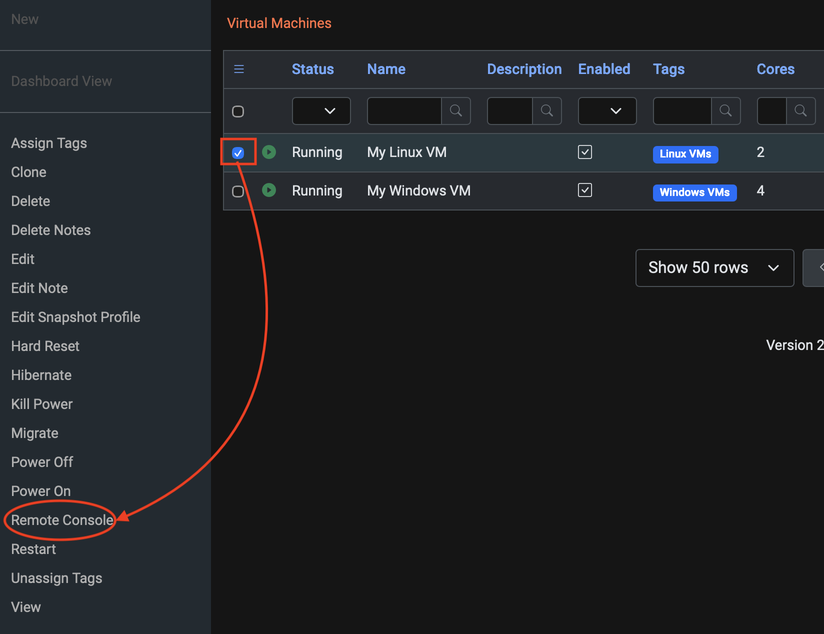
This screen displays the list of currently created virtual machines. Two running virtual machines should be visible: MyLinuxVM and MyWindowsVM. Select MyLinuxVM, then select Remote Console to start a console session with that virtual machine.
A new tab opens automatically to the right of the current tab, displaying a Remote Console session for the Linux virtual machine. Log in using the credentials created earlier. The username is admin and the password is password.
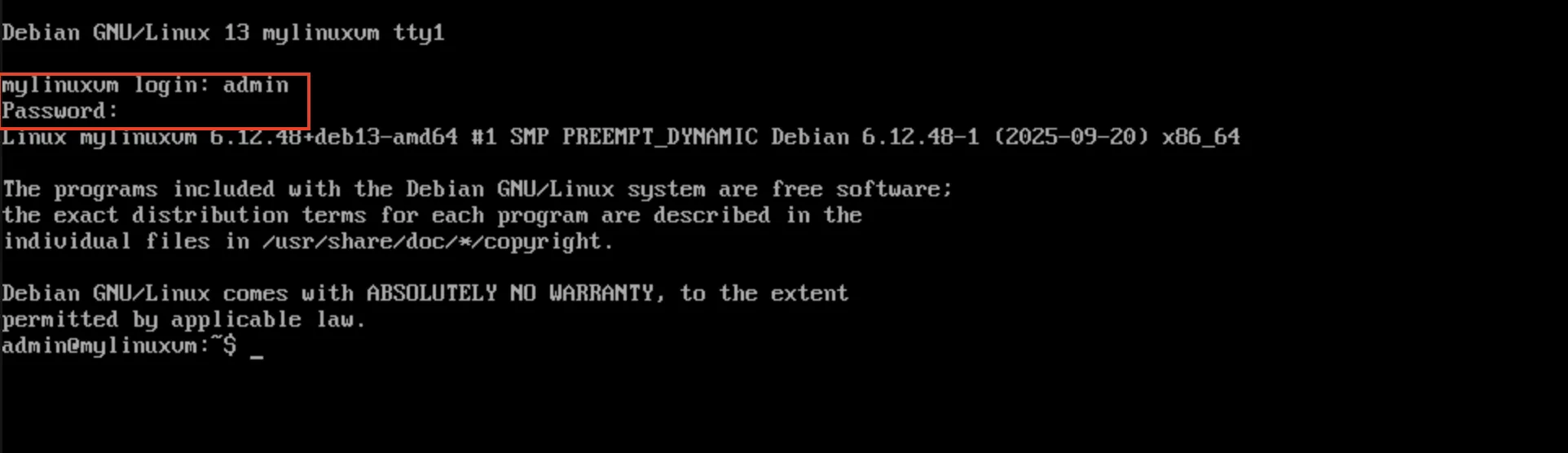
Next, type the following command exactly as shown. Note that spaces separate each command parameter and must be entered precisely.
timeout 10m dd if=/dev/zero of=/dev/null bs=1M status=progress
Press Return or Enter, then verify that continuous progress output is displayed.
Return to the virtual machine dashboard screen to prepare for migration of this virtual machine. Select the tab directly to the left of the MyLinux VM Console, which displays the virtual machine dashboard. My Linux VM should remain selected.


Migrating the VM (Don't Blink)
Before initiating the migration, verify the host node on which the virtual machine is currently running. This information is displayed in the far-right column of the main screen under Host Node. Scrolling to the right may be required to view this column. In this example, the virtual machine is running on Node 1, though the active node may differ in other environments. The virtual machine also displays the tags assigned during the Getting Started with VergeOS lab.
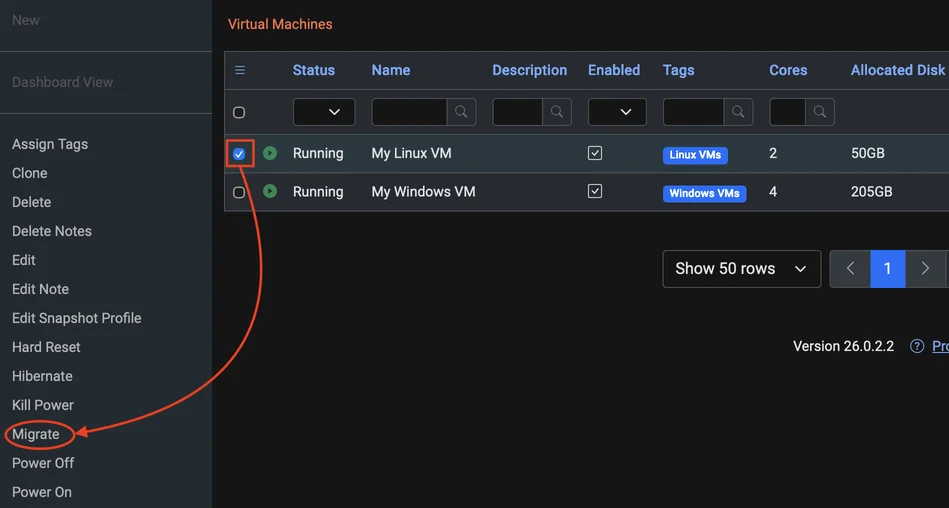
With MyLinuxVM still selected, click Migrate from the left-hand context menu.

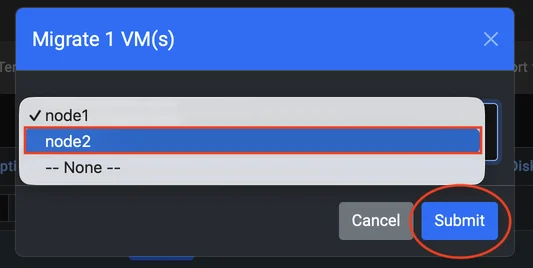
An alert dialog appears prompting for the destination node for the migration. The lab environment includes two available nodes. Select the node that is not currently hosting the virtual machine. In this example, the virtual machine is hosted on Node 1, so Node 2 is selected as the destination.
Once initiated, the migration completes very quickly. Two observation options are available. Option one is to remain on this screen and observe how quickly the migration completes, which is demonstrated in this example. Option two is to switch to the MyLinux VM Console to confirm that the virtual machine continues operating without interruption during the migration.

Clean Up
To ensure the lab environment is prepared for the next course, move the virtual machine back to its original host node.
Follow the same process to migrate the virtual machine back to Node 1. With the Linux VM selected, click Migrate from the left-hand context menu and select the original node to complete the migration.

Once the migration is complete, return to the Remote Console session and press Ctrl+C to stop the running dd command.
