Hands-On Lab Course
File Recovery
Introduction to Course File Recovery
Welcome to the second course in the VergeOS hands-on lab series. This course builds on Getting Started with VergeOS. In this lab, VergeOS snapshot technology is used to recover individual files within the virtual machine.
Preparing for Recovery
Although snapshot schedules have been created for each virtual machine based on timing, those schedules may not have executed yet. The first step, therefore, is to create a manual snapshot. Manual snapshots are commonly used to capture the current state of a virtual machine or a virtual data center before performing actions on those objects. A typical use case is creating a manual snapshot prior to applying a software upgrade or patch. In this scenario, a manual snapshot is required to back up the Windows virtual machine before deleting a file within it.
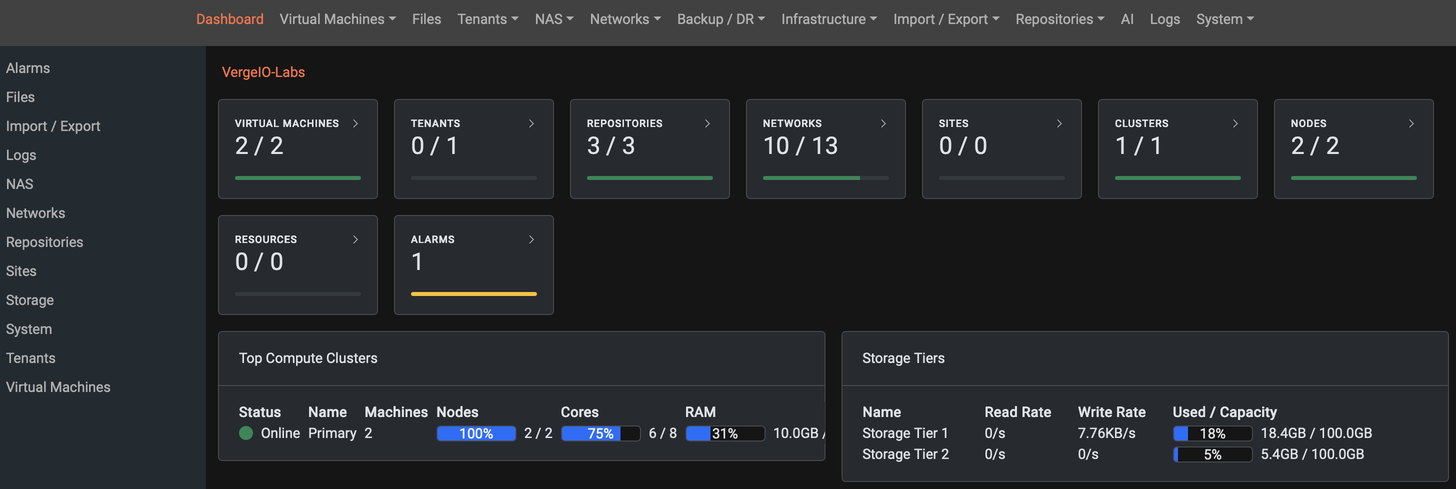
To start, click the dashboard item in the main menu to open the main dashboard display.
Next, navigate to the virtual machine dashboard by selecting Dashboard from the Virtual Machines menu item in the top menu bar, or by clicking the Virtual Machines card in the main dashboard window pane.
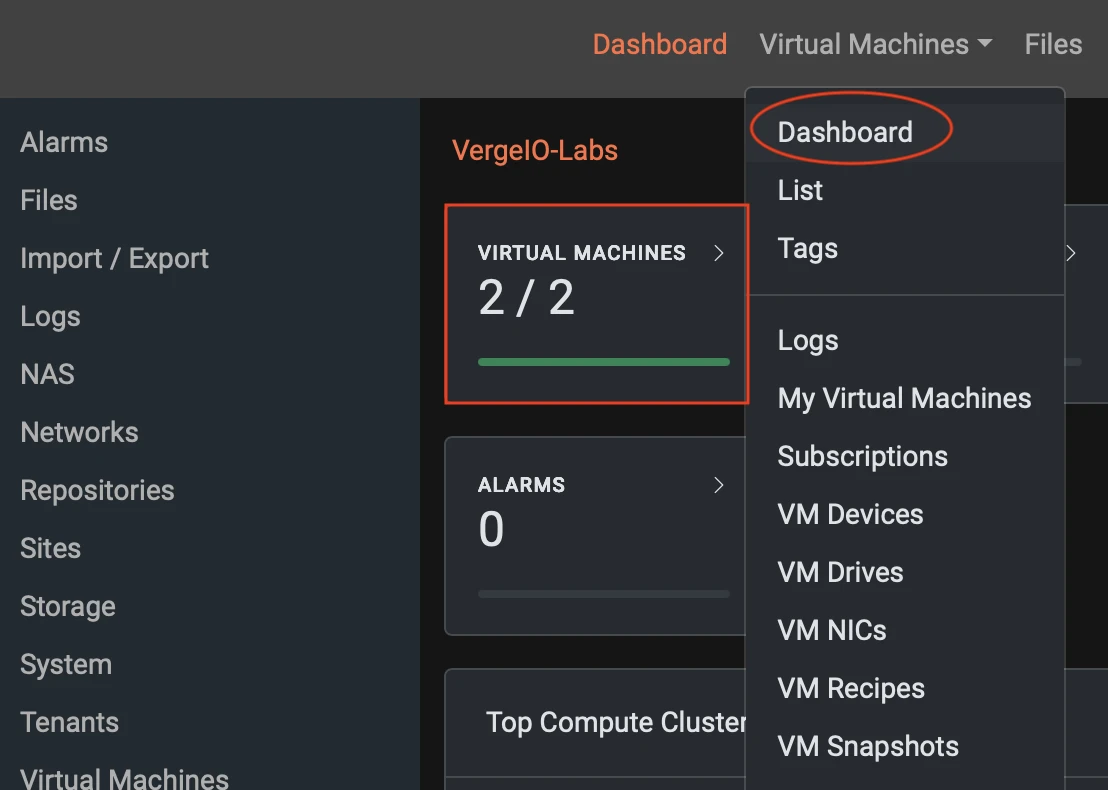
On the virtual machine Dashboard screen, two active virtual machines are displayed. These are the virtual machines created in the previous lab. A list of snapshots generated by the schedules configured earlier may also be visible. From the Dashboard screen, select Virtual Machines from the left-hand context menu or click the Virtual Machines card.

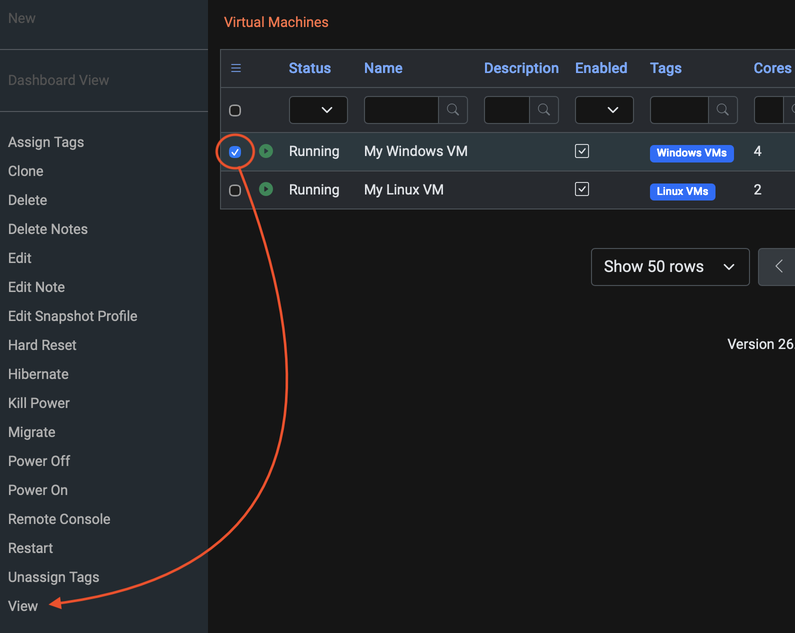
Selecting Virtual Machines displays the two virtual machines created in Course 1. Check the box next to the Windows VM. After doing so, the left-hand context menu updates. Select View from that menu. Double-clicking the row associated with the Windows VM to access the same view.
If your Windows VM is not powered on, see "Powering On Windows VM" in Course 1. Then return to Virtual Machines and select it.
Create a File to Recover
First, create a file to serve as verification that the recovery was successful. Open a Remote Console session to the virtual machine and create a file using Notepad. Launch the Remote Console by selecting Remote Console from the left-hand context menu or by clicking the console icon at the top of the display.

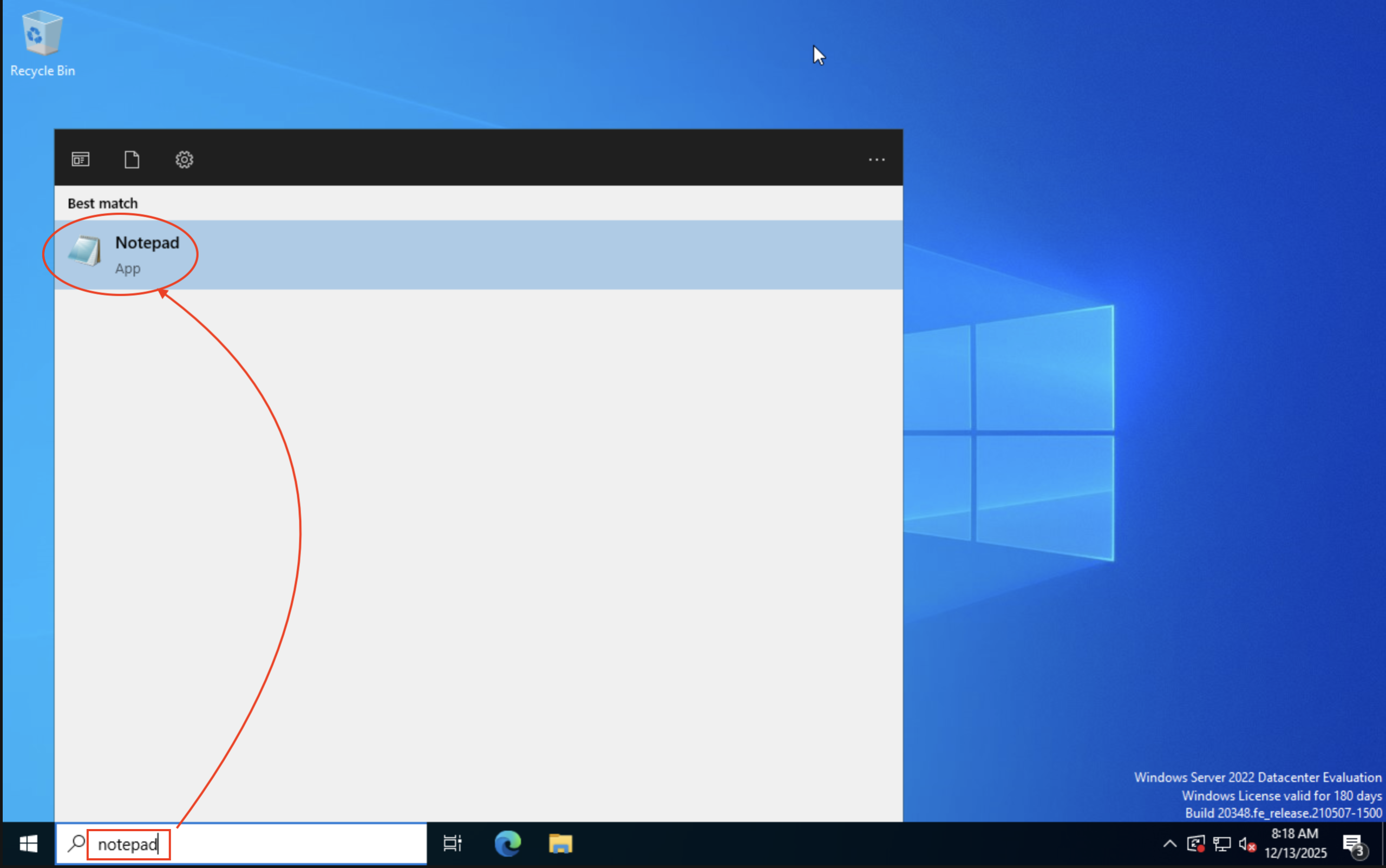
Selecting Remote Console or clicking the console icon opens a new browser tab displaying the Windows virtual machine. If the virtual machine was powered on in a previous step, logging in again using the previously created username and password may be required. If logging into the virtual machine from a Mac Fn + Control + Option + Delete (or Backspace) to log in. Once the main Windows desktop is visible, click within the search bar and type notepad, then select Notepad to open the application by pressing the Return key or clicking the application icon.
Once Notepad is open, type text into the untitled document. Any text is sufficient. Then select File > Save or use Ctrl+S. In the Save dialog, select Documents from the navigation pane, where it is pinned near the top. Assign any valid Windows filename. Click Save and confirm that the file appears in the Documents directory.
Navigate back to the VergeOS detail screen for this Windows virtual machine by selecting the VM: My Windows VM tab. This tab is located directly to the left of the Windows Remote Console tab currently in view.


Taking a Manual Snapshot
The Windows virtual machine detail screen was previously used to assign tags and apply a snapshot schedule in Course 1. A manual snapshot is now created for this virtual machine. In the left-hand context menu, locate the snapshot drop-down menu. Click Snapshots to reveal additional snapshot-related actions, then select Take Snapshot.

The next screen displayed is the Snapshot Details screen. The Windows virtual machine is selected by default in the Machine field. In the Name field, assign the snapshot name My Windows VM Backup. In the Description field, type This is a manual snapshot of My Windows VM. Click the Expires field to display the calendar, then select tomorrow’s date as the expiration. Click Submit after all fields have been completed.

The next screen displayed is the virtual machine detail screen. This screen will be used later; however, a condition must first be created that requires recovery.

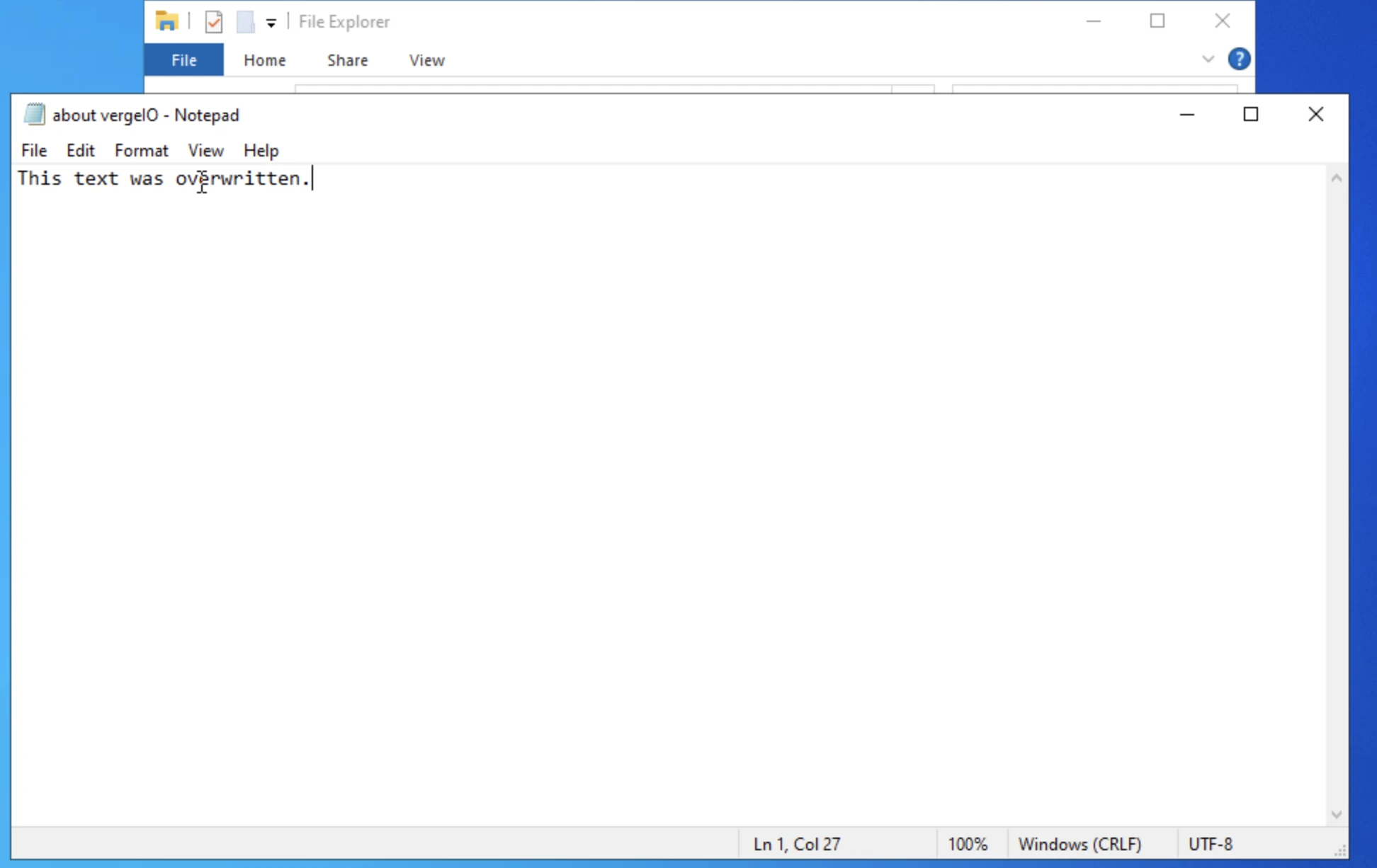
Return to the My Windows VM Console tab, located directly to the right of the current tab. To create a condition that cannot be recovered from the Recycle Bin, open the file, delete or modify all data, and save the file using the same name.
Return to the VergeOS Dashboard tab, located directly to the left of the remote session tab. From there, click the Virtual Machines breadcrumb to display the Virtual Machines overview screen.

With no virtual machines selected, select Snapshots from the left-hand context pane.

In the previous course, full virtual machine recovery was demonstrated. While that approach could be used here, the objective is to recover a single file without restoring the entire virtual machine. VergeOS supports this capability by allowing a snapshot of a virtual machine to be mounted as a drive within that same virtual machine. To proceed, locate the snapshot of the Windows virtual machine created earlier and access its details. From the virtual machine dashboard, open the Windows virtual machine detail screen by double-clicking the virtual machine name or by selecting the checkbox next to the virtual machine and then selecting View from the left-hand context menu.

Next, locate and view the snapshot created for this virtual machine. To do so, click the Snapshots panel on the main virtual machine screen, or, from the left-hand context menu, click the disclosure triangle next to Snapshots and then select Snapshots from the options that appear.

The resulting screen displays a list of snapshots associated with this virtual machine. To restore a snapshot as a drive, access the detailed view of the snapshot. Other snapshots may be present; locate the manual snapshot created at the beginning of the course labeled My Windows VM Backup. Select the checkbox next to the snapshot, then select View from the left-hand context menu.

The resulting screen is the snapshot detail view for the selected snapshot. From this screen, the snapshot can be restored to a new virtual machine or restored over the source. Since the objective is to recover a single file, select Restore Drive to New from the left-hand context menu.

A dialog box appears requesting the drive to restore. This virtual machine has a single associated drive, labeled OS, which is selected by default. If this were a multi-drive virtual machine, additional options would be displayed. Confirm that OS is selected, then click Next.

The next screen provides options that define how the drive is presented to the Windows operating system. Leave all settings at their default values and click Submit.

Next, hot-plug the drive into the Windows virtual machine. To do this, select the Drives panel on the main screen or select Drives from the left-hand context menu.

Next, select the offline drive labeled restore:OS by clicking the checkbox next to the drive, then select Hotplug from the left-hand context menu. A confirmation dialog appears to verify that the drive should be hot-plugged, followed by a confirmation indicating that the operation has completed. The display then returns to the Drives screen, where the restored snapshot drive is shown as online.

The final step is to return to the Windows VM Remote Console tab, located to the right of the VergeOS interface. Click within the Windows command prompt and type diskmgmt.msc to open Windows Disk Management.
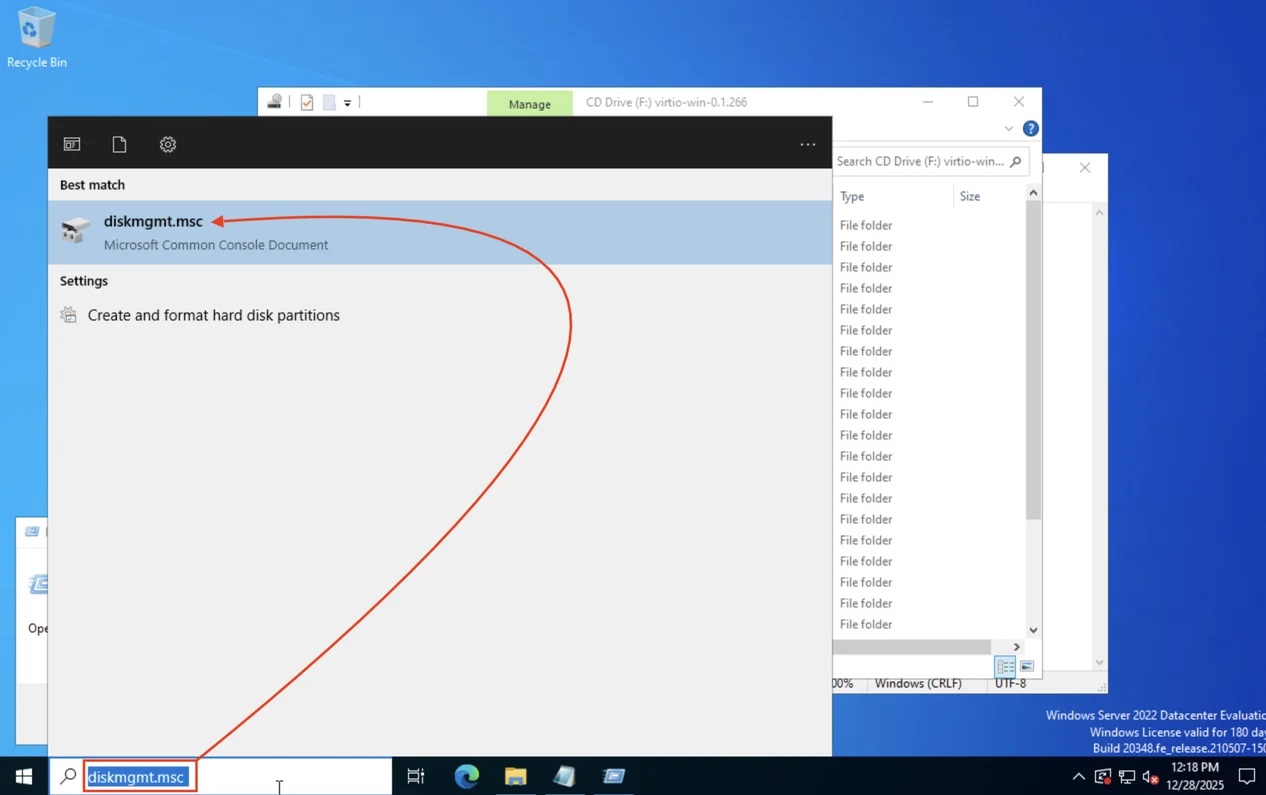
When Disk Management opens, locate the new drive. It appears as Disk 1 and is marked offline. Disk 1 is the same size as Disk 0. Right-click or Control-click Disk 1 and select Online. The restored Windows volume then appears in the center pane as drive H:.

Finally, open Windows File Explorer and navigate to the recovered file. Click File Explorer, then select This PC. In the Devices and drives section, locate Windows (H:) and double-click it. On the next screen, double-click Administrator, then double-click administrator, followed by double-clicking Documents. The recovered file is displayed in this location. In this example, the file is named vergeIO. The file can now be copied back over the accidentally modified file or opened directly from this location.


The File Recovery Lab has been successfully completed.